
This article is based on the short video published in our YouTube channel Connecting to Google Analytics Account in Tableau. The objective is to able to transform your Google Analytics data in Tableau. Start exploring and visualizing Google Analytics data in Tableau with these easy steps.

- To start using the Tableau, you need to download the Application. You may download it here and install it in your pc.
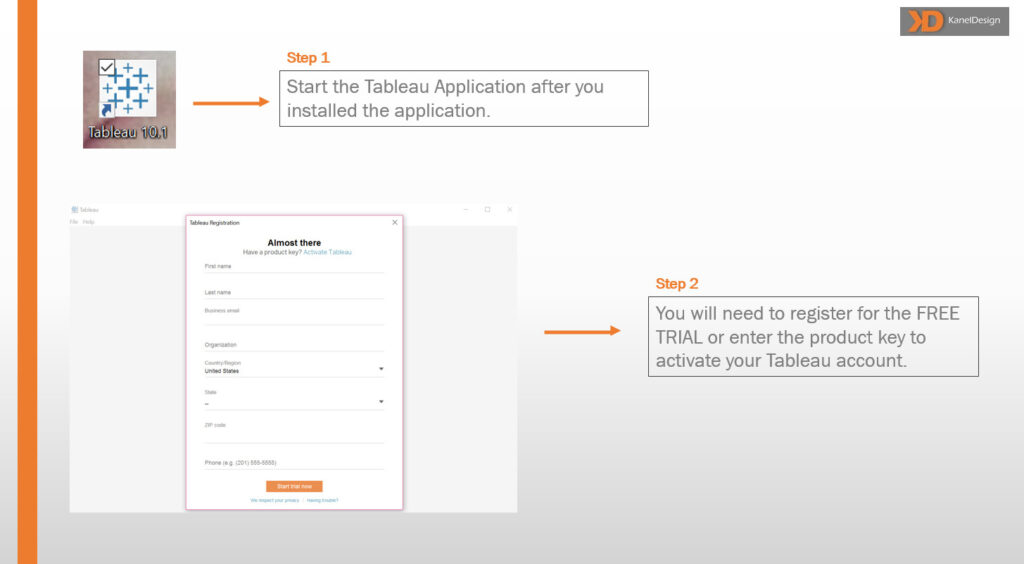
2. Start the Tableau Application after the installation. Tableau will prompt you to register for FREE TRIAL or you may enter the product key (if you have any) to activate your Tableau account and get started.

3. Upon starting, you will be prompt with this page – to choose the options to connect to your data. Go to “More” and select “Google Analytics”. Next, you will be required to sign-up to your Google Account. Sign-in with your Google email and password to access the account.

4. You will then have to choose the account you wish to access. Make sure you choose the right Account, Property and Profile for the data extraction followed by the date range. Next, you will need to select the measure group and choose the dimensions and measures that you want to display in your report. When you’re done, click on the “Sheet 1” and it will take a few seconds for Tableau to retrieve the data from your account.

5. There you go! You’re finally ready to get started with your visualization. You will see in the new sheet – refer to the image above. All the dimensions and measures that you’ve selected is here, on the left side of the screen. You can start with simply drag and drop your options to the space or the “columns & rows”.

You can refer to these Samples Visualization that I’ve created:
- To plot in the map to identify the visitors/customers are from – that are visiting and patronizing at our website.
- View the New vs Returning customers using the pie chart.
- Using the bubble chart to identify which day of the week that have the highest sessions.
- To view the Organic Search vs Overall Page View, and see the correlation between the two variables.

You can refer to these Sample Dashboards that I’ve created:
Based on the individual visualization, I’ve created two main dashboards – for the Visitors and Website.
- Visitors Dashboard
Consist of all the information regarding the visitors to answer the business questions. E.g. Where they from? Which channel group they’re from? Which day of the week they’re most active? Which source they come from? Etc.
2. Website Dashboard
Consist of all the information regarding the website usage to answer the business questions. E.g. How many new acquisitions vs retention? When are the traffic most active during the week? What is our goal completion? Etc.
You can easily personalize the dashboards to suit your own preference. The main objective of these dashboards is to have an overview of your business and being able to answer your business questions at a glance. These reports/dashboards will enable you to monitor your business, track your conversion rate, monitor the traffic to your site and understand the visitor’s behavior.
Have fun exploring and transforming your data with Tableau!